
Discussion of all issues related to Windows 11
-
You are welcome to discuss some Windows 11 topics here
This topic is for informational purposes only and closed for further posting.
Feel free to create a new one. -
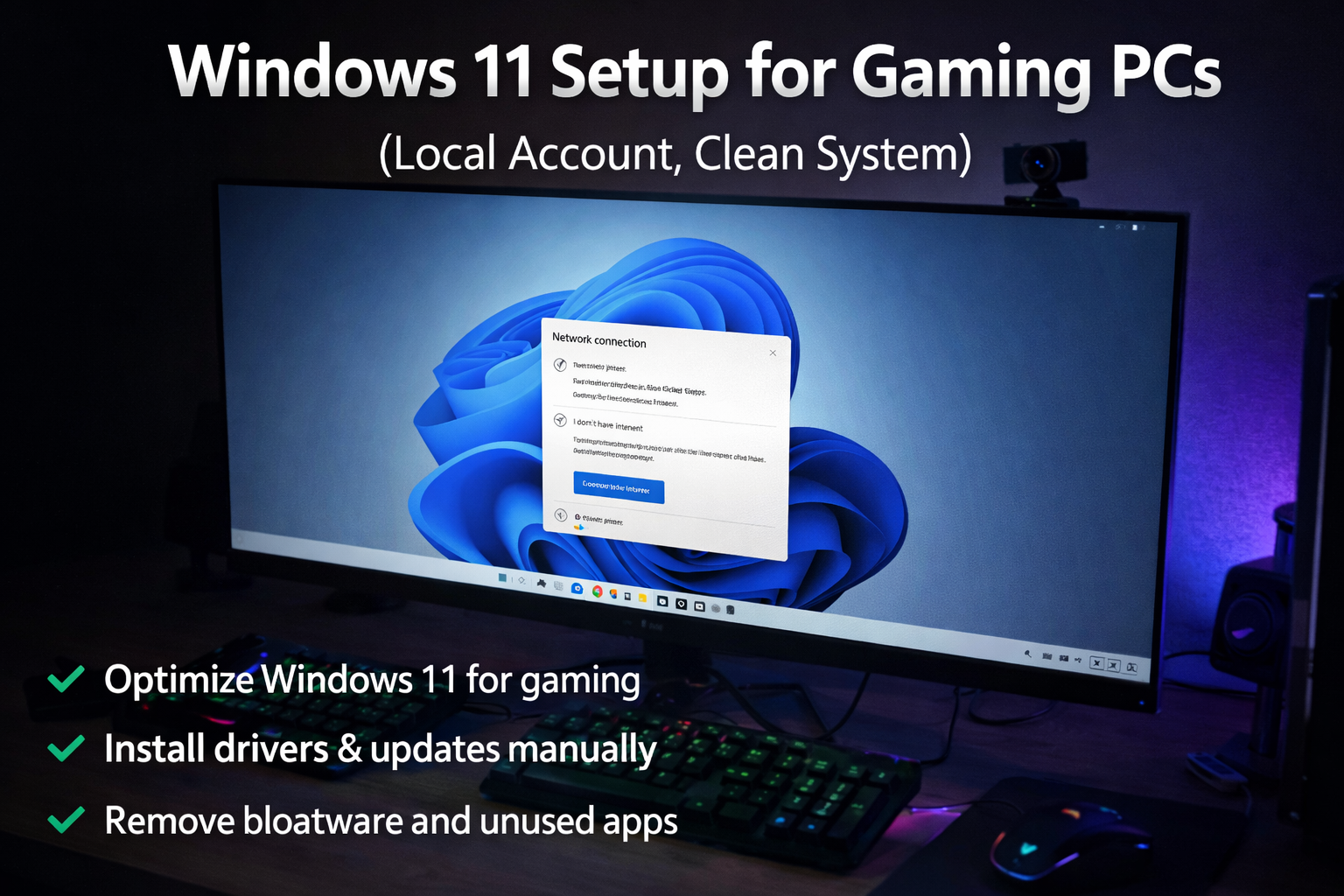
My practical Windows 11 setup for gaming PCs
(Local account, clean system, manual optimization)This guide describes my real-world approach to setting up Windows 11 for gaming.
It is not based on theory or “FPS myths”, but on repeated installations on real gaming systems.I use official Windows 11 and configure it manually to achieve a clean, stable and predictable system.
- Windows 11 installation with a local account (no internet)
During Windows 11 installation, when the system asks to connect to the internet and no network is available, I press:
Shift + F10
This opens Command Prompt.
I enter the following command:
start ms-cxh:localonly
This allows me to continue setup without an internet connection.
I create a local account, set the computer name, skip password creation and continue installation.- Privacy and services during initial setup
During initial setup, Windows offers multiple optional services:
cloud features, typing improvement, user data collection, personalization, telemetry, etc.
I disable everything.
The only option I keep enabled is location/time synchronization, so the system sets the correct time zone and system time.
For diagnostics, I choose “Basic” (not “Full”), knowing that diagnostics will be adjusted later.- No Windows Update at this stage
At this point:
- I do NOT connect to the internet
- I do NOT run Windows Update
This prevents Windows from installing drivers or apps automatically.
- Manual driver installation (offline, prepared in advance)
All drivers are downloaded in advance.
On an AMD platform, I install drivers in the following order:- AMD chipset drivers
- LAN / Ethernet drivers
- Wi-Fi drivers
- Audio drivers
- Bluetooth drivers (if applicable)
- Graphics driver installation
Immediately after all chipset and network-related drivers are installed, I install the graphics driver.
This is done before Windows Update.
If the GPU is NVIDIA, NVIDIA Control Panel will be configured later.- Basic interface cleanup
After driver installation, I adjust the interface:
- Move the Start menu to the left
- Remove unnecessary icons
- Disable widgets
- Simplify the desktop and taskbar
- Removing built-in Windows applications
I remove unnecessary built-in applications such as:
- OneDrive
- Outlook
- Xbox and related services
- Copilot and assistant features
- Other unused default apps
This can be done directly in Windows and is later also easy to manage via WinToys.
- Connecting to the internet and updating Windows
After cleanup, I connect to the internet and run Windows Update.
I allow Windows to fully update and then reboot the system.- System tuning and cleanup using WinToys
After updates, I install WinToys from the Microsoft Store.
WinToys has a clear and intuitive interface and allows manual control over system behavior.
Using WinToys:- Disable telemetry and unnecessary background activity
- Adjust Windows features manually
- Enable Ultimate Performance power plan
(Windows normally only exposes Balanced and Performance modes) - Perform system cleanup after updates, including temporary files
After applying changes, I reboot the system.
- Verification after reboot
After reboot:
- I check Windows Update again
- I verify the Start menu to ensure removed apps were not reinstalled
- If any apps reappear, I remove them again
- I perform another system cleanup if needed
- Browser installation
I install Google Chrome and remove Microsoft Edge.
I configure Chrome as required.- Final reboot
I reboot the system again and perform a final check.
At this point, Windows is clean, updated and stable.
BIOS configuration and tuning are a separate topic and are not part of this guide.
Why I do NOT use custom Windows builds (Atlas OS, FoxOS, etc.)
I am aware of custom and “debloated” Windows builds such as Atlas OS, FoxOS and similar projects.
I understand why some users choose them, and I have experience with such builds.
These are not separate operating systems.
They are modified versions of official Windows with components removed in advance.
I do not use them for the following reasons:-
No full control
You never have complete visibility into what was removed or modified.
This includes system services, security components and update mechanisms.
I prefer to control every change manually. -
Update and compatibility risks
Custom builds often have limited or broken Windows Update support.
Major updates, drivers, games or anti-cheat systems may fail or behave unpredictably. -
Security and reliability
Many custom builds weaken or remove built-in security mechanisms.
This may be acceptable for experiments, but not for stable gaming systems. -
Difficult maintenance and recovery
Once core components are removed, reverting changes cleanly is difficult or impossible.
With official Windows, troubleshooting and recovery are straightforward. -
Manual optimization works better long-term
Using official Windows and tuning it manually provides:
- Full compatibility
- Predictable updates
- Stable performance
- No hidden modifications
For these reasons, I use official Windows 11 and optimize it manually.
This approach provides the best balance between performance, stability and long-term usability. - Windows 11 installation with a local account (no internet)
-
 A andermaxpc unlocked this topic on
-
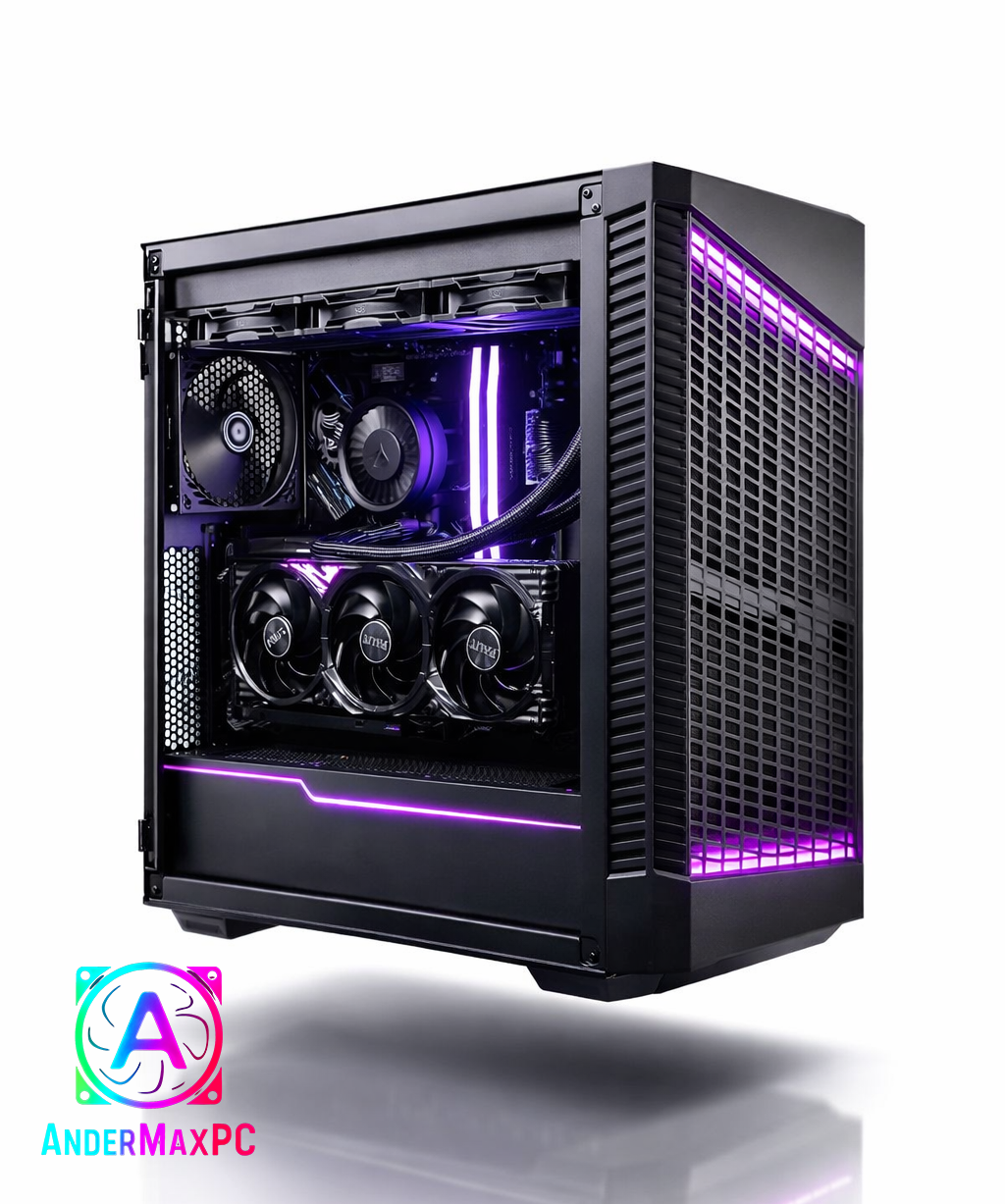
This gaming PC was assembled, configured, and tested by a custom PC builder.
The system is built with a focus on real-world gaming performance, thermal efficiency, and long-term reliability.
All components were carefully selected to ensure proper balance without unnecessary compromises.Assembly and service details:
• Clean manual assembly with proper cable management
• CPU and GPU thermals optimized
• High-quality thermal paste applied
• GPU inspected and tested under load
• System stability tested (gaming and stress scenarios)This build is designed for smooth 1440p gaming with high refresh rate monitors.
No experimental hardware, no unstable drivers, no low-quality power delivery components.Built for daily use — not just to look good in photos.
Type Item Price CPU [AMD Ryzen 9 9900X 4.4 GHz 12-Core Processor] £349.00 @ Currys PC World CPU Cooler [ARCTIC Liquid Freezer III Pro 360 77 CFM Liquid CPU Cooler] £71.98 @ Amazon UK Motherboard [MSI X870E GAMING PLUS WIFI ATX AM5 Motherboard] £199.99 @ AWD-IT Memory [Corsair Vengeance RGB 32 GB (2 x 16 GB) DDR5-6000 CL30 Memory] £531.99 @ Corsair UK Storage [Netac NV3000 1 TB M.2-2280 PCIe 3.0 X4 NVME Solid State Drive] £138.17 @ NeoComputers Video Card [Palit GamingPro GeForce RTX 5070 12 GB Video Card] £559.00 @ Box Limited Case [MSI MPG VELOX 100P AIRFLOW ATX Mid Tower Case] £72.99 @ AWD-IT Power Supply [MSI MAG A850GL PCIE5 850 W 80+ Gold Certified Fully Modular ATX Power Supply] £97.94 @ CCL Computers Operating System [Microsoft Windows 11 Home Retail - USB 64-bit] £115.47 @ Scan Prices include shipping, taxes, rebates, and discounts Total £2136.53
-
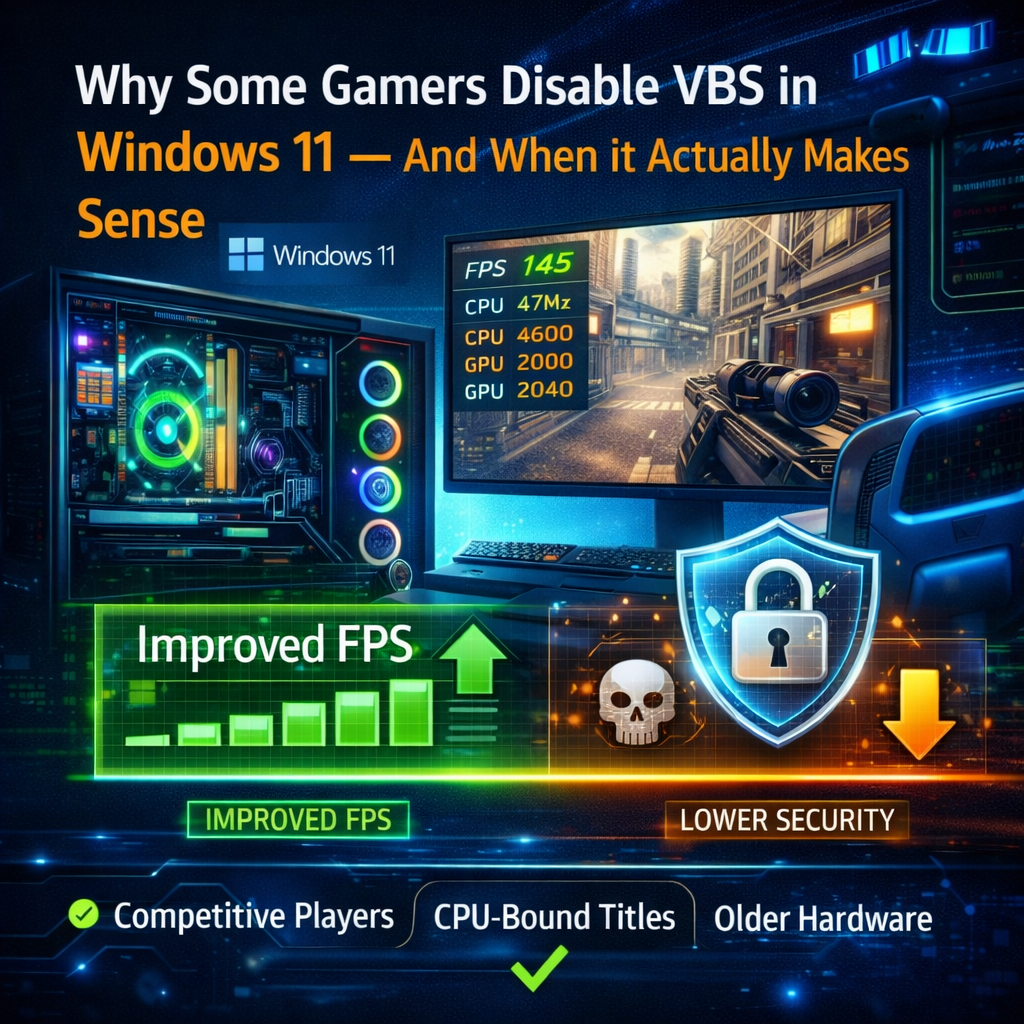
Why Some Gamers Disable VBS in Windows 11 — And When It Actually Makes Sense
Speaking as an experienced Windows and PC gaming user, the topic of disabling VBS (Virtualization-Based Security) comes up regularly, and it’s worth explaining it without extremes or fear-mongering.Some gamers disable VBS not because they are “against security”, but because they are chasing very specific performance goals. This usually applies to competitive or CPU-bound scenarios: high-refresh-rate esports titles, older engines, simulation games, or systems where the CPU is already the limiting factor.
VBS introduces an additional isolation layer between the operating system and critical components like memory and the kernel. On modern CPUs, the overhead is generally small, but it is real. In certain edge cases, this can slightly reduce minimum FPS, increase frametime variance, or add small latency penalties. For most users, this difference is barely noticeable. For competitive players, even a few percent can matter.
Another reason is hardware context. On older CPUs or entry-level systems, virtualization-based features can be proportionally heavier. In those cases, disabling VBS may produce a more noticeable improvement than on modern high-end hardware.
That said, it is important to understand what is being traded away.
Disabling VBS lowers protection against kernel-level attacks, malicious or vulnerable drivers, and advanced persistence techniques. These are not common threats for average home users, but they are the exact mechanisms used by sophisticated malware, cheat loaders, and targeted attacks. With VBS off, Windows behaves closer to older security models.
This does not mean the system becomes instantly unsafe. Windows still has multiple layers of defense. However, the security margin is reduced, especially against low-level threats that traditional antivirus solutions are not always effective against.
So when is disabling VBS a reasonable choice?
It can make sense for:
Competitive gamers who prioritize maximum and consistent FPS Users with older CPUs where virtualization overhead is more pronounced Controlled environments where software sources are trusted and limitedWhen is it not recommended?
General-purpose systems PCs used for work, browsing, downloads, or mixed workloads Systems exposed to unknown drivers, mods, or untrusted softwareIn short, disabling VBS is not a “magic performance tweak” and not something that should be done blindly. It is a calculated trade-off. For most modern gaming PCs, leaving it enabled provides better overall balance. For niche performance-focused scenarios, disabling it can be justified — as long as the user understands the risks.
-
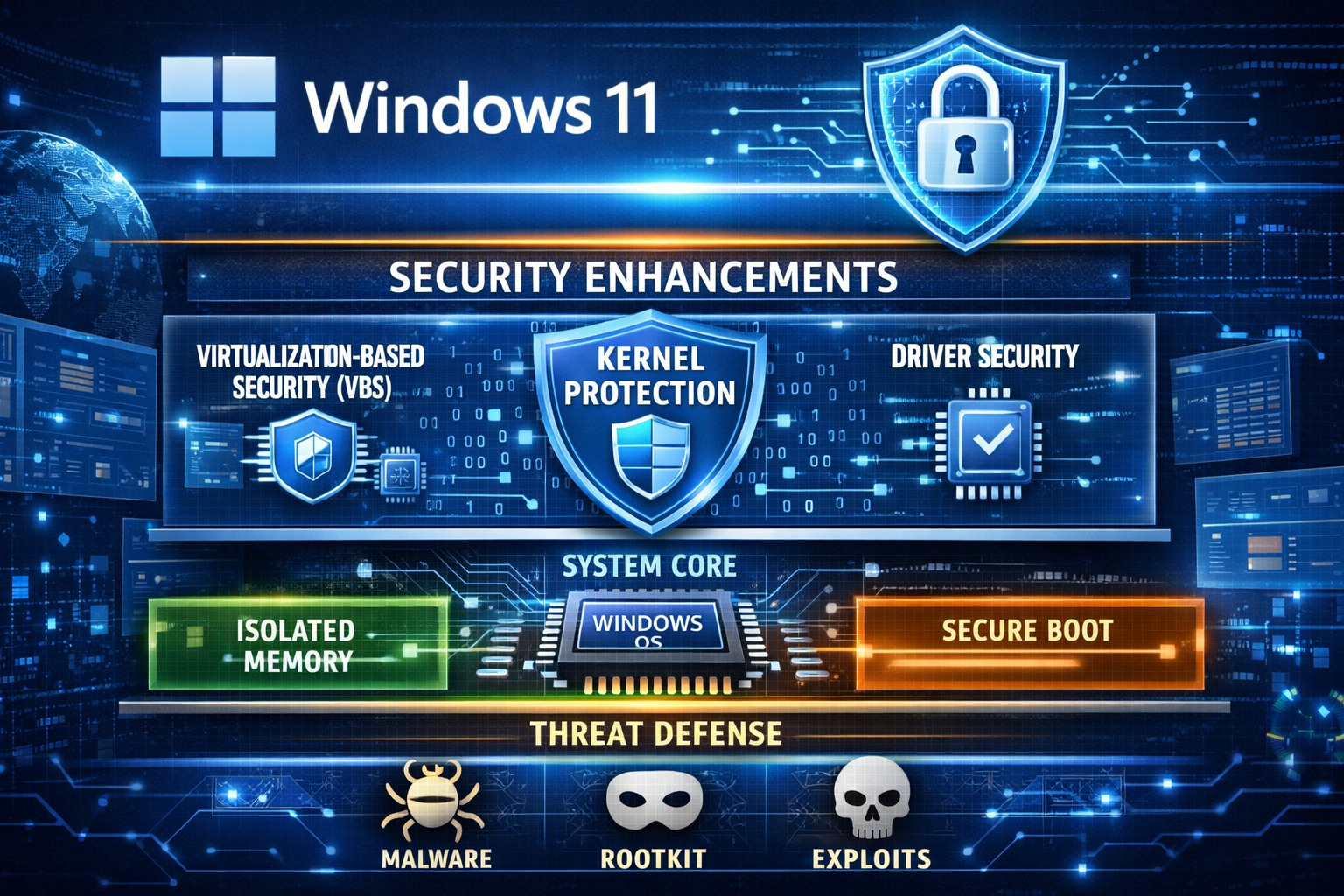 Windows 11 25H2 became noticeably larger in size, and Microsoft recently explained why. The reason is not new visual features or bundled apps, but a significant expansion of security mechanisms at the system and kernel level.
The key point is that Microsoft strengthened protection in areas that operate at the lowest level of the operating system: the kernel, drivers, and memory isolation. These changes are expensive in terms of disk space, but they are intentional.
One of the main additions is deeper kernel-level protection. This targets modern attack vectors such as rootkits, malicious drivers, and exploits that attempt to load before or alongside the OS. To achieve this, Windows now ships with more built-in components, validation data, and fallback mechanisms. These are not downloaded on demand — they are stored locally to ensure reliability and offline patching.
Another major factor is the expanded use of Virtualization-Based Security (VBS) and HVCI. In simple terms, parts of Windows are now isolated in a protected virtual environment. Even if malicious code executes, it cannot easily reach critical system components. This requires additional system images, memory maps, and compatibility layers, which directly increases the size of the OS image and cumulative updates.
Driver security has also been tightened. Windows 11 25H2 includes stricter driver validation, larger blocklists for vulnerable drivers, and more integrity-checking data. This is particularly important because many real-world exploits rely on legitimate but insecure drivers to gain kernel access.
A common question is whether these security mechanisms affect gaming performance.
In most modern gaming scenarios, the impact is minimal to negligible. On current CPUs, especially mid-range and high-end systems, the overhead introduced by VBS and kernel protections is usually within the margin of error — often a few percent at most, and frequently unnoticeable in GPU-bound games.
However, there are edge cases. Competitive players chasing maximum FPS in CPU-limited titles, or users on older hardware, may observe small drops in minimum FPS or slightly higher latency. This is why some gamers choose to disable features like VBS or Memory Integrity.
Disabling these protections can indeed recover a small amount of performance, but it comes with real trade-offs. Turning them off reduces protection against kernel-level malware, malicious drivers, and advanced persistence techniques. These attacks are rare for casual users, but they are exactly the type used in targeted attacks, cheat loaders, and advanced malware.
In other words, disabling these features does not make Windows “unsafe” overnight, but it does lower the security ceiling. The system becomes more similar to older Windows versions in terms of attack surface.
The increase in Windows 11 25H2 size is therefore not accidental and not a sign of unnecessary bloat. It reflects a strategic decision by Microsoft to prioritize system integrity, offline reliability, and long-term security, even at the cost of larger update packages and higher storage requirements.
Whether to keep all these protections enabled depends on the user. For most systems, especially general-purpose and gaming PCs with modern hardware, the default configuration offers a reasonable balance between security and performance.